The most common configuration and the one you'd most likely use is this, the Accordion list.
Lorem ipsum dolor sit amet, consectetur adipisicing elit, sed do eiusmod tempor incididunt ut labore et dolore magna aliqua. Ut enim ad minim veniam, quis nostrud exercitation ullamco laboris nisi ut aliquip ex ea commodo consequat. Duis aute irure dolor in reprehenderit in voluptate velit esse cillum dolore eu fugiat nulla pariatur. Excepteur sint occaecat cupidatat non proident, sunt in culpa qui officia deserunt mollit anim id est laborum.
Purpose
text
When to use
text
Create a List
Before adding a list to your page, it is necessary to create a new entry on the Lists component page.
- Navigate to Content > Lists and click on Lists
NOTE: If you don't see Lists in the dropdown, use the support form to make a request and we'll include it for you.
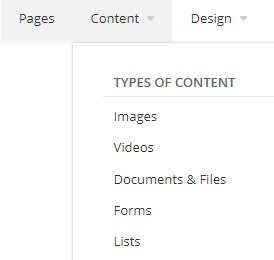
- Click Create a list. Give the list a name and then hit Create to save.
- On the next screen, click Create a list item.
- Add a Title and the corresponding information in the Content section
- Hit Publish when you're done.
- Repeat Steps 3 - 5 to add additional entries to the list.
How to use
- Add
- Edit
- Delete
- Click Content on the Drag widgets toolbox to the right of the screen.

- Locate the Lists widget and drag it across to the section on the page where you want the list to appear
- Click Select which list to display or Edit to view the options for the List widget.
- Under Which lists to display? click Select and choose your list. Then click Done selecting.
- Under Templates select Accordion in the List items dropdown.
- Click Save to return to your page
- Click More at the top right of the widget
- Select Delete in the dropdown to remove the widget.